

Why Coverage Problems Happen - and What You Can Actually Fix
Poor Wi-Fi coverage is one of the most common home technology frustrations, yet the router itself is rarely the only problem. Walls, appliances, router location, and even neighboring networks all chip away at signal quality. Before spending money on new hardware, it's worth understanding which factors are within your control.
For a deeper look at what's degrading your connection speed, see why your Wi-Fi slows down - many of the same culprits apply to coverage gaps. This guide focuses on practical fixes you can apply today, ranging from free configuration changes to low-cost hardware additions.
Check What Your ISP Equipment Allows
Some internet service providers supply a combined modem-router unit and may restrict access to certain settings like channel selection or band management. If your admin interface doesn't show these options, your ISP's customer support line can clarify what's configurable. In some cases, you may be able to request a different device or put the ISP modem into bridge mode and add your own router.
Placement and Physical Setup
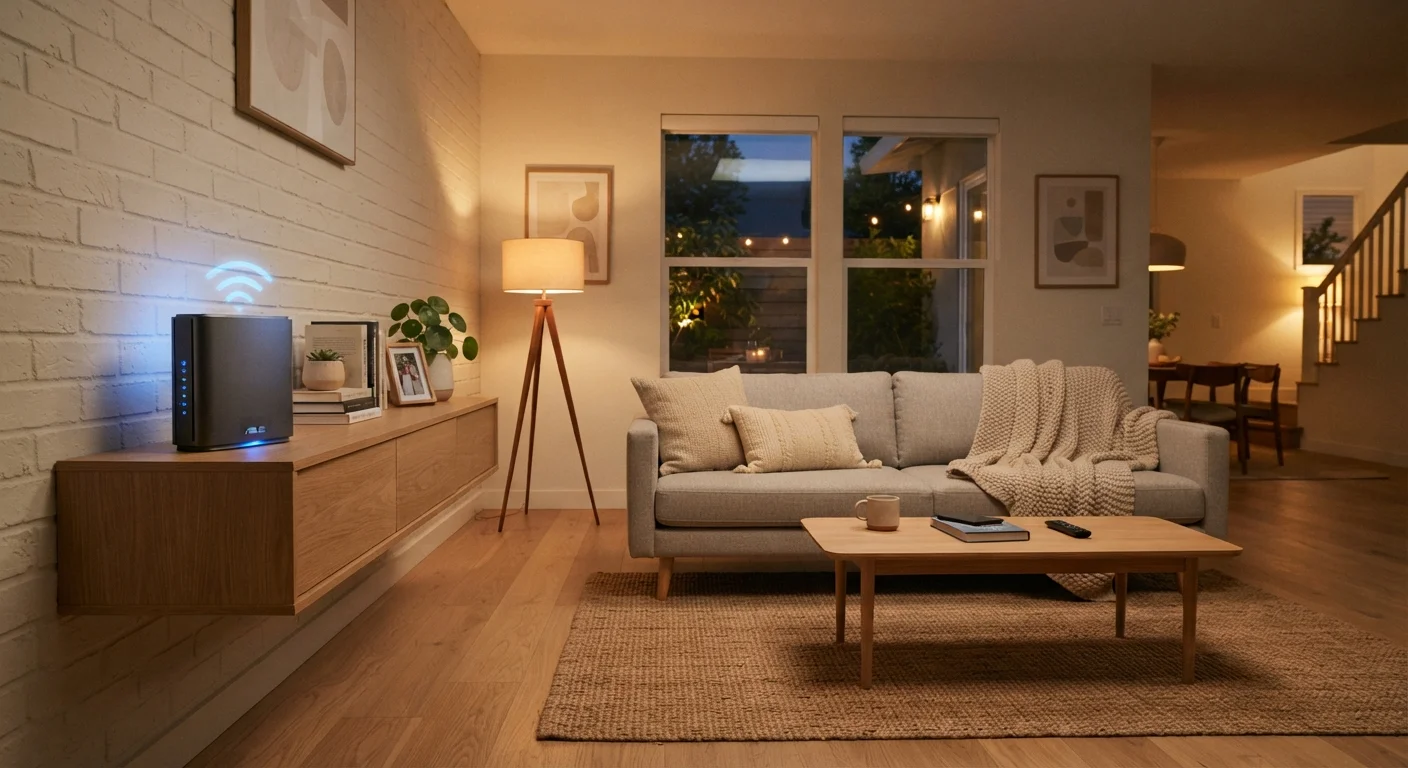
Where your router sits matters more than most people realize. A router tucked inside a cabinet, placed on the floor, or located in a corner of the house will struggle to distribute signal evenly.
Position your router centrally and at an elevated height in your home.
Wi-Fi signals radiate outward in all directions. A central location minimizes the maximum distance the signal must travel to reach any room. Elevation reduces interference from furniture and flooring.
Keep the router away from microwaves, cordless phones, and thick concrete or brick walls.
Microwaves and some cordless phones operate on the 2.4 GHz frequency and create direct interference. Dense building materials absorb and scatter Wi-Fi signals significantly.
Manually select a Wi-Fi channel with minimal neighboring network overlap.
Channel congestion from nearby routers reduces throughput for every device sharing that channel. Selecting channels 1, 6, or 11 on the 2.4 GHz band avoids overlap between channels.
Connect high-bandwidth devices to the 5 GHz band and reserve 2.4 GHz for devices that need range.
Mixing all device types on a single band creates congestion. Separating them by their actual needs makes better use of available spectrum.
Update router firmware and restart the device on a regular schedule.
Outdated firmware can contain security vulnerabilities and performance bugs. Regular restarts clear memory leaks that accumulate over time and degrade speed.
Once placement is optimized, check that the router's antennas - if it has external ones - are oriented vertically. Internal antennas in modern routers are designed to broadcast in multiple directions, but external antennas pointed straight up typically produce the widest horizontal coverage pattern for typical single-floor layouts.
Channel and Band Settings
Home routers broadcast on specific radio channels within the 2.4 GHz and 5 GHz frequency bands. When dozens of routers in an apartment building all use the same channel automatically, they create interference that slows every device down.
11
Non-overlapping 2.4 GHz channels available in the US
Only channels 1, 6, and 11 are fully non-overlapping on the 2.4 GHz band, making channel selection especially important in dense residential areas.
~3x
Speed advantage of 5 GHz over 2.4 GHz at close range
The 5 GHz band can deliver significantly faster throughput than 2.4 GHz for nearby devices, though its range and wall penetration are shorter.
Most routers are set to pick their channel automatically, but that algorithm doesn't always make the best choice. Logging into your router's admin interface - typically reached by typing its IP address (often 192.168.1.1 or 192.168.0.1) into a browser - lets you manually select a channel. Free apps like Wi-Fi Analyzer (Android) or similar tools can show you which channels nearby networks are using so you can pick a less crowded one.
The 2.4 GHz band passes through walls more easily but is more congested and slower. The 5 GHz band offers faster throughput at closer range. Assigning bandwidth-heavy devices like streaming boxes to 5 GHz while letting smart home devices use 2.4 GHz can meaningfully reduce bottlenecks.
Extending Coverage with Additional Hardware
When configuration changes aren't enough, adding hardware is the next step - and you still don't need to replace your router to do it.
Mesh Wi-Fi systems use multiple access points that communicate with each other seamlessly. Devices roam between nodes without manually switching networks. Mesh systems are especially effective in multi-story homes or spaces with complex layouts. Many systems allow you to add nodes to an existing router rather than replacing it entirely.
Powerline adapters send network data through your home's electrical wiring. You plug one adapter near your router and connect it via ethernet, then plug a second adapter in a distant room. They're particularly useful for reaching areas like basements or garages where Wi-Fi signal barely reaches. Speeds vary depending on your home's wiring age and quality.
Wi-Fi range extenders (also called repeaters) are the most affordable option. They rebroadcast your existing signal but typically operate on a separate network name and can introduce some latency. They work best when placed halfway between the router and the dead zone - not at the edge of the weak signal.
For a comprehensive view of how all these factors fit into your broader home internet setup, the complete guide to your home internet experience covers equipment decisions alongside speed needs and troubleshooting.
Firmware Updates and Router Maintenance
Router manufacturers regularly release firmware updates that improve stability, fix security vulnerabilities, and sometimes genuinely improve wireless performance. Many routers update automatically, but it's worth logging into the admin interface periodically to confirm your device is current.
Schedule Weekly Router Restarts Automatically
Many routers include a scheduled reboot option in their admin settings - no manual intervention required. Enabling it to restart in the early morning hours means you won't notice any interruption and the router stays fresh. This is especially useful for households that rarely think about network maintenance.
Restarting your router regularly - even once a week - clears its memory and can restore performance that has degraded over days of continuous operation. This is a free, zero-effort step that many households overlook.
If your home network also handles guests or visitors, keeping guest traffic on a separate guest network limits how much bandwidth they consume on your main network and adds a basic layer of security separation.
The content on this site is for informational purposes only and is not a substitute for professional advice. Always consult a qualified professional for guidance specific to your situation.