

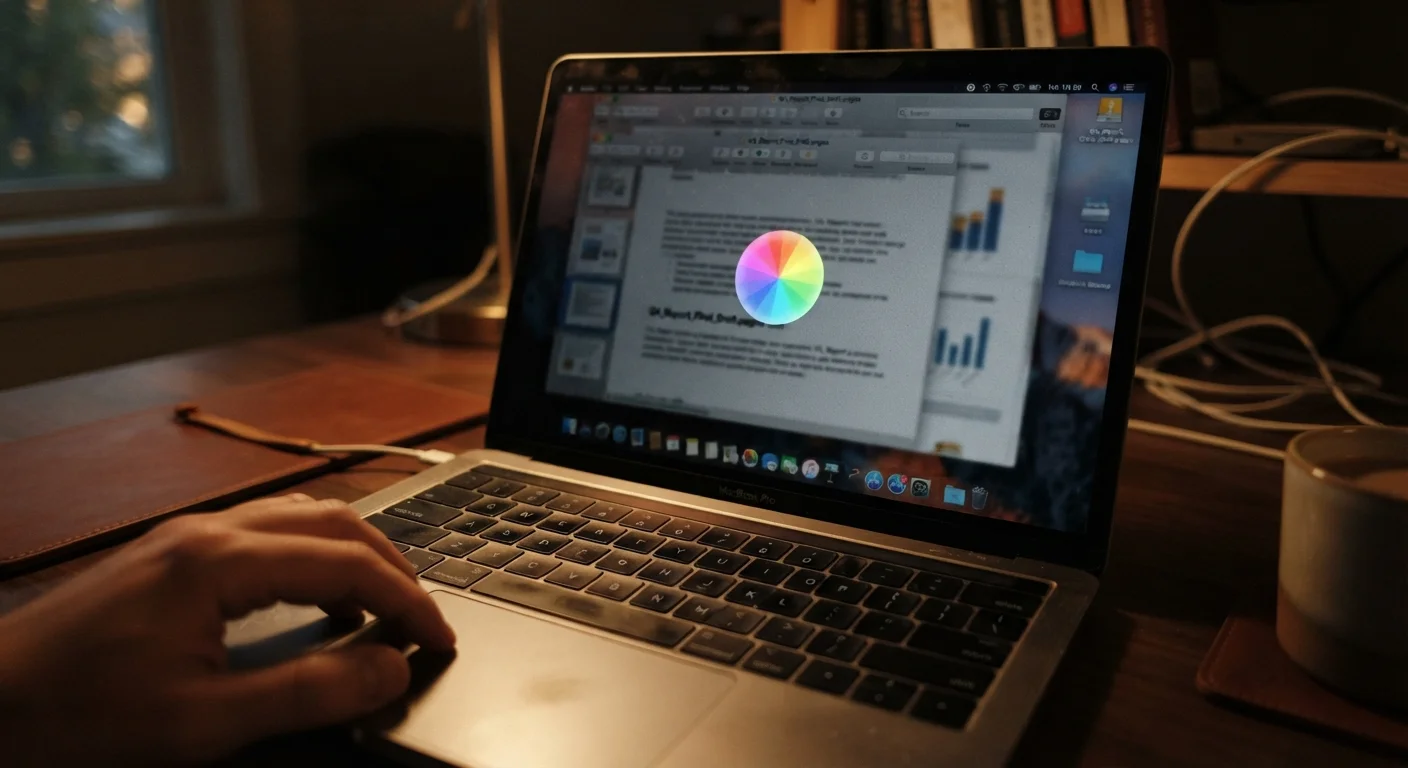
What Your Laptop Is Actually Trying to Tell You
Laptops don't break down silently. Before a device becomes truly unusable, it sends a series of clear, recognizable warning signals - spinning cursors, sluggish app launches, unexpected shutdowns. The problem is that most people dismiss these as minor annoyances rather than reading them as diagnostic clues.
Understanding what each symptom means transforms you from a frustrated user into someone who can make informed decisions about their device. Just as dashboard warning lights tell you what's wrong with your car, laptop slowdown symptoms each point to specific underlying causes.
~3 years
Average lifespan before noticeable performance decline
Industry observers generally note that consumer laptops begin showing meaningful performance degradation between three and five years of regular use, often due to software growth outpacing aging hardware.
10-15%
Minimum free storage recommended for system stability
Technology support resources consistently advise keeping at least 10-15% of total drive capacity free to allow the operating system adequate working room for temporary files and virtual memory.
Up to 50%
Potential CPU speed reduction from thermal throttling
When a processor reaches its thermal limit, modern laptops can reduce CPU clock speed by significant margins - sometimes up to half of peak speed - to prevent heat damage, directly causing sluggish performance.
The Most Common Slowdown Symptoms Explained
Slow Boot Times
If your laptop takes several minutes to reach a usable desktop, the most common culprit is a bloated startup sequence. Every program configured to launch at startup consumes RAM and CPU cycles before you've even opened a single tab. Secondary causes include a failing or aging hard disk drive (HDD) - as mechanical drives age, read/write speeds decline measurably. Solid-state drives (SSDs) degrade more gracefully but are not immune.
Frequent Freezing or Unresponsiveness
A laptop that locks up mid-task is typically hitting a resource ceiling. RAM (random-access memory) is the workspace your laptop uses for active processes. When it runs out, the system spills overflow onto the storage drive, which is dramatically slower - causing freezes. Software conflicts, corrupted system files, and malware can also trigger this behavior.
Overheating and Loud Fan Noise
Fans that run constantly at high speed indicate your laptop's cooling system is working overtime. Dust accumulation in vents is among the most overlooked causes: it insulates heat rather than allowing it to escape. When internal temperatures climb too high, modern processors deliberately reduce their speed - a protective mechanism called thermal throttling - which directly causes slowdowns. Everyday habits can accelerate this wear faster than most users realize.
Sluggish Web Browsing
Slow browser performance isn't always your internet connection's fault. Browser extensions, cached data, and dozens of open tabs each consume RAM. If pages load slowly even on a fast connection, the bottleneck is often local. See also: why your Wi-Fi connection itself may be the cause.
Check Your Task Manager First
Before assuming hardware failure, open your system's task manager (on Windows: Ctrl + Shift + Esc; on Mac: Activity Monitor) and look at CPU, memory, and disk usage. If any resource is pegged at or near 100% even at idle, you've found the constraint. This single step can save hours of guesswork and help you explain the problem clearly if you do seek technical support.
The Hidden Causes Behind the Symptoms
Several root causes frequently go unrecognized because their effects are gradual.
Storage Saturation
A drive that is 90% or more full actively impairs system performance. Operating systems rely on free space for temporary files, virtual memory, and system operations. When that space disappears, performance doesn't just slow - it can become erratic.
Software Entropy
Over time, laptops accumulate installed programs, background services, and scheduled tasks that weren't there when the device was new. Each one claims a share of system resources. This layering effect is one of the most common reasons a two-year-old laptop feels dramatically slower than it did on day one.
Outdated Drivers and Operating System
Device drivers - software that allows your operating system to communicate with hardware - require periodic updates. Outdated drivers can create inefficiencies, instability, and compatibility issues that manifest as slowdowns or crashes.
Malware Can Mimic Hardware Problems
Some slowdown symptoms that appear hardware-related - persistent high CPU usage, unexpected crashes, unusual network activity - can be caused by malicious software running in the background. Running a reputable security scan is a worthwhile step before concluding a hardware component is at fault. Many operating systems include built-in security tools that can perform this check without additional software.
Aging Hardware
Components have finite lifespans. Hard disk drives, batteries, and even RAM modules can degrade physically over years of use. A battery that no longer holds a reliable charge can trigger power-related performance throttling even when plugged in.
Reading the Signals Before They Become Failures
Slowdown symptoms are best understood as a spectrum. Early signs - slightly longer app load times, occasional brief freezes - leave room for straightforward interventions like clearing storage, reducing startup programs, or cleaning vents. Later-stage symptoms - persistent unresponsiveness, thermal shutdowns, drive read errors - may indicate hardware that needs professional evaluation.
The goal isn't to diagnose every issue yourself, but to arrive at informed decisions: whether to perform simple maintenance, seek technical help, or plan for a hardware upgrade. Recognizing the signals early gives you options. Ignoring them narrows those options over time.
Frequently Asked Questions
A restart clears temporary memory, but if slowness persists, the cause likely goes deeper - such as too many startup programs, low storage space, or hardware wear. Background apps that relaunch automatically at startup can quickly reclaim RAM, leaving little room for active tasks.
Common signs include the fan running loudly and continuously, the bottom of the laptop feeling hot to the touch, and the system slowing down or shutting off unexpectedly. Most laptops throttle CPU speed automatically when temperatures exceed safe thresholds, which directly causes sluggishness.
Yes. Operating systems use free drive space as temporary working memory (called a paging file or swap space). When storage is nearly full, this process becomes severely constrained, causing noticeable system-wide slowdowns. Keeping at least 10-15% of drive space free is generally recommended.
Not necessarily. Many slowdown causes - cluttered startup programs, full storage, outdated drivers, or accumulated dust in vents - can be addressed without replacement. Hardware failures or very outdated components may eventually justify an upgrade, but diagnosis should come first.
Many laptops use power management profiles that limit performance on battery to conserve charge. If it slows down while plugged in, the issue is more likely thermal throttling or software-related. Checking your power settings can clarify which profile is active.
They can, yes. Updates often include performance patches, security fixes, and driver improvements that reduce inefficiency. Skipping updates can allow software conflicts and security vulnerabilities to accumulate, both of which contribute to degraded performance over time.
The content on this site is for informational purposes only and is not a substitute for professional advice. Always consult a qualified professional for guidance specific to your situation.