

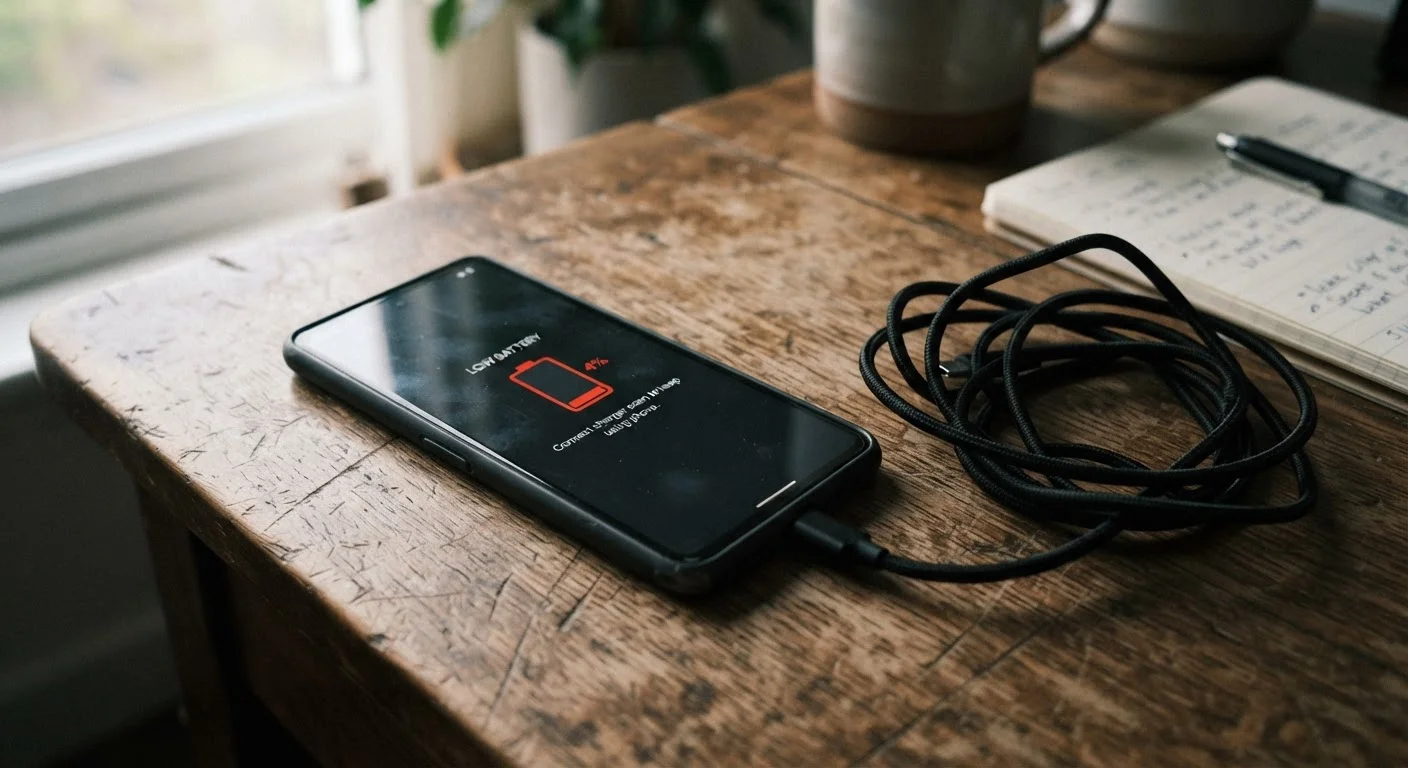
The Real Culprits Behind Fast Battery Drain
When your phone struggles to last through the day, it's rarely one single cause. Battery drain is almost always the result of several overlapping factors working simultaneously. Understanding which ones are at play on your device is the first step toward doing something about it.
Screen brightness is consistently one of the largest power consumers on any smartphone. The display - especially on phones with large, high-resolution OLED or LCD screens - requires substantial energy. Running your screen at full brightness in situations where a lower setting would work just as well is a straightforward source of unnecessary drain.
Background app activity is another major factor most people overlook. Even apps you're not actively using may be refreshing content, syncing data, or checking for notifications in the background. Email clients, social media apps, and navigation tools are common examples. Your phone's battery settings screen will typically show you which apps have consumed the most power recently - it's worth checking regularly.
20-30%
Battery share consumed by the display alone
Research from battery and mobile hardware analysts consistently identifies the screen as one of the single largest power consumers on a modern smartphone.
~500
Charge cycles before noticeable capacity loss
Apple's published battery specifications indicate that iPhone batteries are designed to retain up to 80% of original capacity at 500 complete charge cycles under normal conditions.
Up to 3x
More power used searching for weak signal
Studies of smartphone radio behavior show that phones in low-signal environments can use several times more power for cellular activity than phones with a strong connection.
Location services deserve special attention. Apps with continuous access to your GPS - even when you're not using them - can quietly drain your battery throughout the day. Reviewing which apps have "always on" location access and switching less essential ones to "only while using" can make a measurable difference.
How Your Environment and Signal Affect Battery Life
Your phone doesn't operate in a vacuum. The environment around you directly influences how hard it has to work - and therefore how fast it drains.
Weak cellular signal is one of the most underappreciated battery drains. When your phone can't find a strong connection, it continuously increases transmission power and searches more aggressively for a signal. Being in a building with poor reception, a rural area, or a cellular dead zone forces your phone to work much harder than it would with a strong signal. Just as your home internet connection can behave erratically for reasons that aren't immediately obvious - see our article on why your Wi-Fi slows down - your phone signal affects performance in ways that aren't always visible on the surface.
Extreme temperatures also impact battery performance. Lithium-ion batteries are sensitive to heat and cold. High temperatures - such as leaving your phone in a hot car - can accelerate chemical degradation, while very cold temperatures temporarily reduce the battery's ability to deliver power.
Try Airplane Mode in Low-Signal Areas
If you're in a location with consistently poor cellular coverage and don't need to make calls, switching to airplane mode (and connecting to Wi-Fi if available) can dramatically slow battery drain. Your phone won't waste power endlessly hunting for a signal it can't find.
Battery Age and the Chemistry of Decline
All lithium-ion batteries degrade over time - this is a fundamental chemical reality, not a flaw in any particular phone. Each time you charge your phone, you complete what's called a charge cycle. Over hundreds of these cycles, the battery's ability to hold a full charge gradually diminishes.
A battery that once held enough charge for 12 hours of use might, after two or three years of regular use, only sustain 8 or 9 hours under the same conditions. This reduction in battery capacity is measured as battery health, and both major mobile operating systems provide tools to check it.
“Battery capacity is not a static feature - it's a consumable resource that diminishes with each charge cycle. Understanding that helps users set realistic expectations and make smarter charging decisions.”
— Battery Technology Research Community, Consumer electronics research and analysis
It's worth noting that some everyday habits accelerate this degradation faster than expected. Consistently draining your phone to 0% before charging, keeping it at 100% for extended periods, and charging with high heat can all shorten battery longevity. Our related guide on habits that shorten device lifespan covers this in more depth.
Settings That Quietly Consume Power - And What to Review
Several settings that ship enabled by default are worth reviewing if battery life is a concern. None of these are inherently bad - they exist for good reasons - but understanding their cost lets you make an informed choice.
- Push email and notifications: Constant server connections to fetch new mail or deliver real-time alerts consume power continuously. Switching to manual or scheduled fetch for less critical accounts can help.
- Auto-brightness and adaptive display: If your phone isn't already using automatic brightness, enabling it often reduces average screen brightness without sacrificing usability.
- Background app refresh: This feature allows apps to update their content while you're not using them. Disabling it for apps that don't need up-to-the-minute data is a simple way to reduce background activity.
- Hey Siri / Google Assistant always-on listening: Voice assistants that remain in a listening state use the microphone and processor continuously. Disabling always-on listening is an option for those who rarely use voice commands.
Reviewing your privacy and security settings more broadly - including which apps have access to your microphone, camera, and location - is a productive exercise both for battery life and for peace of mind. Our guide on smartphone privacy and security settings walks through the key areas to review on both Android and iOS.
Finally, if your phone has been running sluggishly alongside the battery drain, it may be worth a restart. There's real technical reasoning behind why that helps - see our explainer on why restarting your device fixes so many problems.
Frequently Asked Questions
Even when you're not using it, your phone may be running background app refreshes, fetching email, syncing cloud services, or maintaining a Wi-Fi or cellular connection. Disabling background app refresh and enabling airplane mode or a scheduled Do Not Disturb mode overnight can help reduce overnight drain significantly.
Keeping Wi-Fi on when connected to a network actually uses less power than relying on cellular data. Bluetooth uses minimal power in modern phones unless actively streaming audio. The bigger concern is when your phone constantly scans for a Wi-Fi or Bluetooth signal without finding one.
Both Android and iOS include built-in battery health tools. On iPhone, go to Settings > Battery > Battery Health & Charging. Android devices vary by manufacturer, but most have a Battery section in Settings that shows usage patterns and health indicators.
Modern phones have circuitry that slows or stops charging once they reach 100%, so overnight charging is less harmful than it once was. However, keeping a lithium-ion battery at 100% for extended periods does add stress over time. Many phones now offer optimized or scheduled charging features to address this.
Yes. Apps that use GPS, stream video, play audio in the background, or constantly sync data can individually account for a significant share of daily battery consumption. Your phone's battery usage screen shows a breakdown by app, which is the most direct way to identify problem applications.
If your phone's battery health has dropped significantly - commonly below 80% capacity - and the device is otherwise functioning well, a battery replacement can restore performance at a fraction of the cost of a new phone. Check with the manufacturer or a reputable repair service for options.
The content on this site is for informational purposes only and is not a substitute for professional advice. Always consult a qualified professional for guidance specific to your situation.