

Summary
18 items · 15-40 minutes
Why a systematic approach matters
When your internet goes out, the instinct is to either restart everything immediately or call your ISP right away. Neither approach is wrong, but working through a logical sequence first saves you time - and often resolves the problem before you ever need to pick up the phone.
Home internet problems fall into three categories: something wrong with your equipment, something wrong with the wiring inside or entering your home, or something wrong on your provider's network. The checklist below is structured to move through those categories in order, from the most common and most fixable to the least common and least controllable. For a broader understanding of how residential internet works end to end, see our complete home internet primer.
Don't reset - restart
There's an important difference between restarting your modem (unplugging it briefly) and performing a factory reset (holding a recessed button). A factory reset wipes your router's configuration, including your Wi-Fi network name and password, and may require you to reconfigure everything from scratch. Unless a support agent specifically instructs you to factory reset, only do a power cycle - unplug, wait, replug.
Fiber and fixed-wireless require extra care
If your service uses fiber optics, the optical network terminal (ONT) - typically a white box mounted on a wall - should not be tampered with or power-cycled without guidance from your provider. Similarly, fixed-wireless equipment on your roof or exterior may need a provider technician to re-align or reset. Consult your ISP before touching these components.
Equipment and tools you'll need
You won't need anything specialized for most of these steps. An Ethernet cable is the single most important item - it lets you rule out Wi-Fi as the source of the problem with one quick test. A smartphone on mobile data is equally critical once you move into checking for provider outages.
Ethernet cable
Connects a device directly to your modem to test whether the issue is Wi-Fi-specific or affects the whole connection.
Smartphone with mobile data
Lets you access your ISP's outage map and online resources without relying on your home connection.
Modem/router manual or model number
Helps you interpret status lights correctly and provides the information ISP support agents will request.
Flashlight
Useful for inspecting cable connections behind furniture or in low-light utility areas.
Work through the checklist
Start at the top and stop as soon as you find the problem. Each group builds on the previous one. If restarting your equipment in the correct sequence restores your connection, there's no need to continue - you're done.
ISP outage vs. your equipment: know the difference
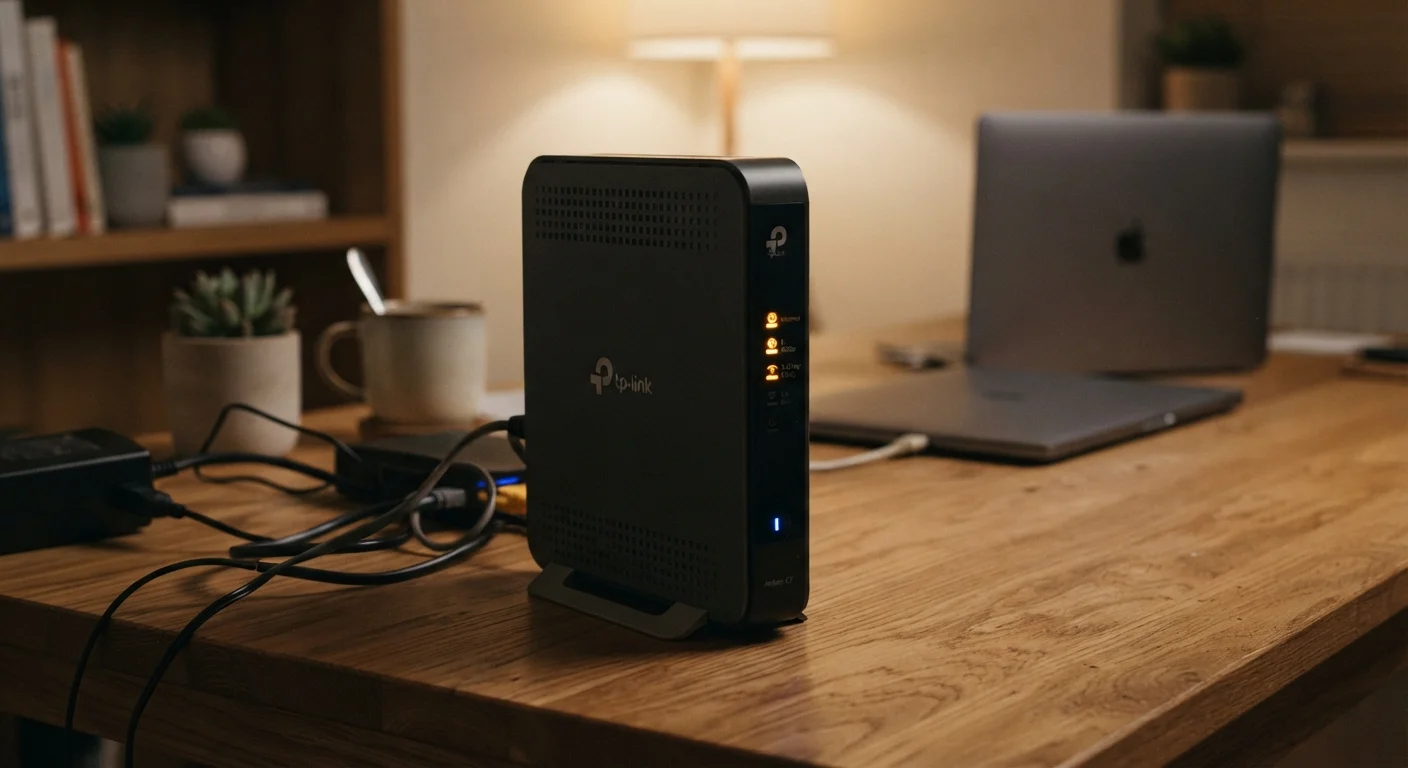
If your modem shows no downstream signal light at all - meaning it cannot detect any signal from the provider's network - the problem is almost certainly outside your home and no amount of equipment-swapping will fix it. In this case, skip directly to confirming an outage with your ISP. Spending time on internal troubleshooting when a provider outage is the cause only delays resolution.
Confirm the scope of the outage
Restart your equipment
Isolate the connection type
Inspect equipment and physical connections
Check for a provider-side outage
Prepare before contacting support
If the wired Ethernet test reveals the connection is fine but Wi-Fi is the culprit, the issue is separate from an outage entirely. Our article on why Wi-Fi slows down covers those causes in detail. For readers on cable, DSL, fiber, or fixed wireless, the physical behavior of your connection - including how outages typically present - differs by technology; our guide to internet delivery technologies explains those differences clearly.
After the outage is resolved
Once service is restored, take five minutes to note what fixed it. If a simple power cycle solved the problem, your equipment may be due for a firmware update - check your router's admin interface (typically accessed via a browser at 192.168.1.1 or 192.168.0.1) for available updates. If a technician visit was required, ask the technician to explain what was found; understanding whether the fault was at the street-side connection point, inside your home, or with your modem helps you recognize the pattern if it recurs.
Persistent or recurring outages may indicate aging equipment, a deteriorating line, or a larger infrastructure issue in your area. Documenting the dates and durations of outages gives you a factual basis for that conversation with your provider. For a full overview of everything that influences your home internet experience - from equipment to contracts - visit our end-to-end home internet guide.
The content on this site is for informational purposes only and is not a substitute for professional advice. Always consult a qualified professional for guidance specific to your situation.