

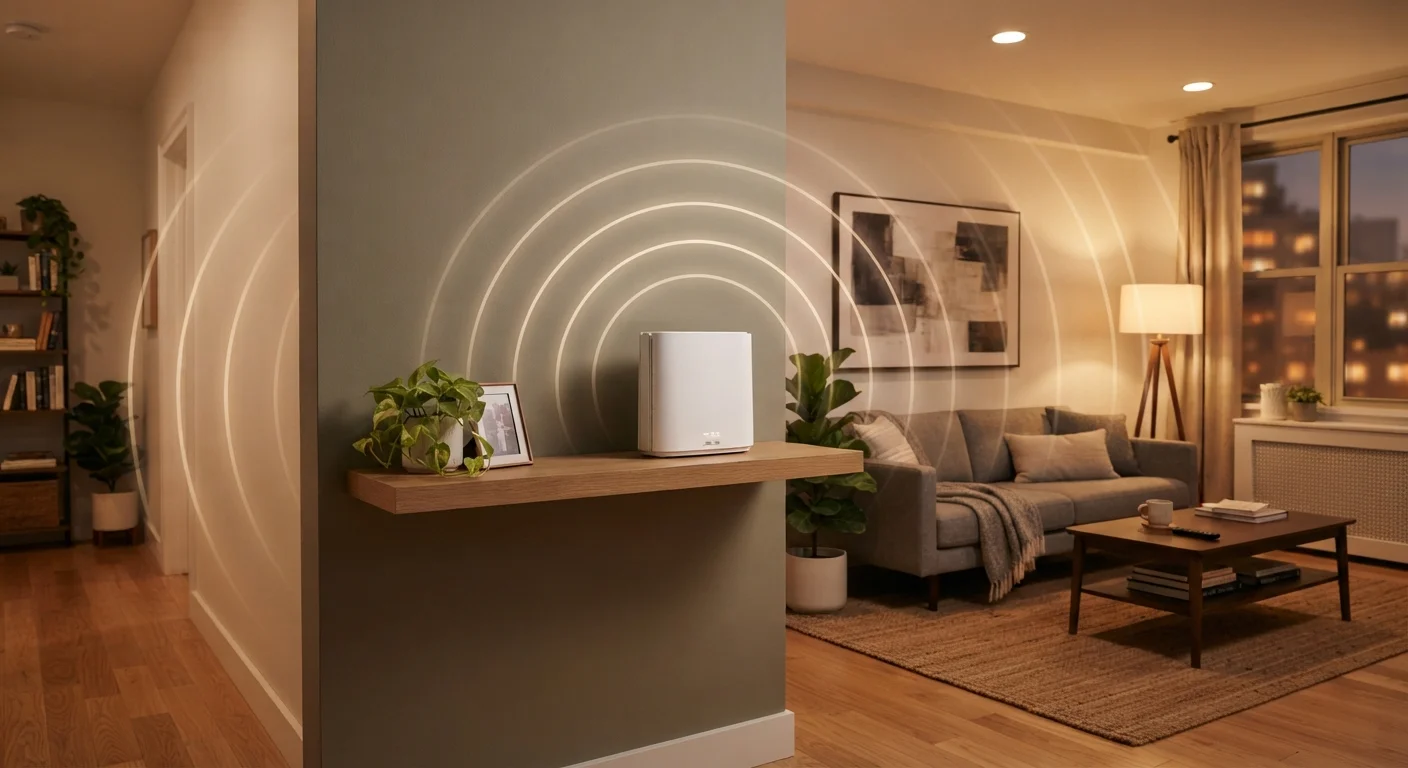
How Wi-Fi Signals Actually Travel
Wi-Fi signals don't shoot in a straight line like a flashlight beam - they radiate outward from the router in all directions, more like a slowly expanding bubble. As that bubble grows, the signal weakens. Every physical object in its path - walls, furniture, floors, appliances - absorbs or deflects some of that energy.
The two most common Wi-Fi frequencies behave differently. The 2.4 GHz band travels farther and passes through obstacles more easily, but it's slower and more prone to interference from other household devices. The 5 GHz band delivers faster speeds but loses strength more quickly and struggles more with thick walls or long distances. Understanding this helps explain why placement decisions affect different parts of your home differently.
~50%
Signal loss passing through a concrete wall
RF engineering studies consistently show that dense concrete can reduce Wi-Fi signal strength by roughly half or more compared to open air.
3x
Coverage improvement from central vs. corner placement
Network engineers generally estimate that centering a router in a typical home can triple the usable coverage area compared to a corner installation.
25-50%
Range lost when router is inside a closed cabinet
Enclosed spaces absorb and reflect signals; industry estimates suggest a cabinet placement can cost a quarter to half of a router's effective range.
This is why the room where your router lives - not just your internet plan - determines how well streaming, video calls, and gaming actually perform in every corner of your home.
What Gets in the Way - and How Much
Not all barriers are equal. Here's how common home materials affect signal strength:
- Drywall: Minimal impact - signals pass through with little loss.
- Wood floors and doors: Moderate impact, especially when stacked across multiple levels.
- Brick and concrete: Significant impact - these dense materials absorb radio waves substantially.
- Metal: The worst offender. Metal studs inside walls, metal cabinets, and reinforced concrete can reflect or block signals almost entirely.
- Water: Fish tanks and large water features absorb Wi-Fi signals more than most people expect.
Appliance interference is a separate issue. Microwaves, baby monitors, and older cordless phones all operate on or near the 2.4 GHz band, creating signal congestion when they're active. Placing your router near the kitchen or a home office loaded with electronics can introduce consistent, invisible interference.
Do a Quick Walk-Test Before Committing
Before permanently repositioning your router, do a walk-test: place it in the proposed new location temporarily, then walk to every room you use most and check signal strength on your phone's Wi-Fi settings. This takes less than ten minutes and confirms whether the new spot is actually better before you run cables or rearrange furniture.
The Placement Rules That Actually Make a Difference
Practical placement comes down to a handful of principles that consistently improve coverage:
- Go central. A router in the center of your home has a shorter maximum distance to any given room than one tucked in a corner. For multi-floor homes, a central location on the middle floor is the gold standard.
- Get it off the floor. Routers radiate signals more horizontally and downward than upward. A shelf, desk, or wall mount at mid-room height means more of that signal reaches your living spaces instead of the floor below.
- Keep it in the open. A router inside a cabinet, closet, or entertainment center is essentially a signal in a box. The enclosure absorbs and blocks coverage. Even moving a router a few feet out of an enclosed space can meaningfully improve range.
- Minimize wall crossings. Every wall between the router and a device costs signal strength. When possible, position the router so your highest-demand devices - smart TVs, computers, gaming consoles - face fewer barriers.
For a deeper look at how the router fits into your broader home network, see our guide on everything that shapes your home internet experience.
When Placement Alone Isn't Enough
Some homes - older construction with thick plaster walls, large multi-story layouts, or sprawling ranch-style floorplans - present real challenges that optimal placement alone can't solve. If you've moved your router to the most central, elevated, open position available and still experience dead zones, that's a signal (no pun intended) to explore additional solutions.
Options range from Wi-Fi range extenders to mesh network systems that place multiple access points throughout the home. Our guide on improving Wi-Fi coverage without replacing your router walks through these options in practical terms.
It's also worth knowing the difference between your modem and your router - because many ISPs deliver a combined unit that may not be positioned well for your home's layout. Understanding that distinction (covered in our piece on modems vs. routers) opens up options for separating and repositioning your equipment more effectively.
This article provides general technology information and education. Specific results will vary based on home construction, router model, and ISP equipment. Consult your ISP or a qualified technician for setup assistance tailored to your home.
Frequently Asked Questions
The best placement is as central as possible, elevated off the floor, and in open air rather than inside a cabinet or closet. This allows the signal to radiate roughly equally in all directions, reducing dead zones on the far ends of your home.
Yes. Routers emit signals in a downward-sloping pattern, so placing one on the floor means much of the signal is absorbed by the ground rather than spreading through your home. A shelf or desk height typically improves coverage noticeably.
Absolutely. Every wall a signal passes through reduces its strength. Drywall has minimal impact, but brick, concrete, and walls with metal studs or insulation can significantly weaken or even block a Wi-Fi signal.
Yes. Microwaves emit interference on the 2.4 GHz frequency band - the same band many routers use. Keeping your router several feet away from the microwave and other high-interference appliances helps maintain a cleaner signal.
Your ISP typically installs equipment where the cable or phone line enters the home, which may not be central. You can often move the router using a longer Ethernet cable, or use a separate router in a better location connected to the ISP's modem - see our guide on <a href="/technology/home-internet/modem-vs-router-two-devices-two-very-different-jobs">modems vs. routers</a> for how those devices differ.
Repositioning your router is the first step and often the most effective. If dead zones persist after optimizing placement, options include Wi-Fi extenders, mesh network systems, or powerline adapters. See our guide on <a href="/technology/home-internet/improving-wi-fi-coverage-without-replacing-your-router">improving Wi-Fi coverage without replacing your router</a> for practical next steps.
The content on this site is for informational purposes only and is not a substitute for professional advice. Always consult a qualified professional for guidance specific to your situation.